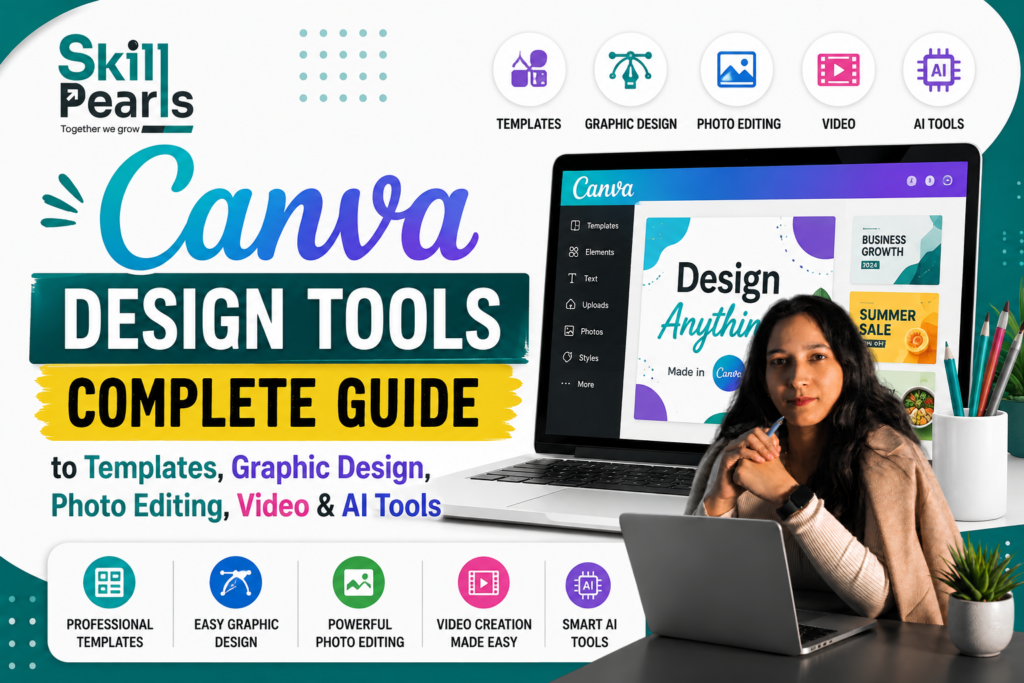
Canva क्या है?
Canva एक online visual design platform है जिसकी मदद से beginners भी बिना advanced graphic-design knowledge के social media posts, presentations, posters, resumes, thumbnails, videos, documents, websites और कई अन्य visual formats बना सकते हैं।
सरल भाषा में, Canva आपके idea को visual design में बदलने का आसान माध्यम है।
Canva इतना उपयोगी क्यों है?
Canva में templates, drag-and-drop editing और ready-made visual resources के कारण शुरुआती व्यक्ति जल्दी शुरुआत कर सकता है।
IDEA → TEMPLATE / BLANK CANVAS → EDIT → BRANDING → REVIEW → EXPORT
Canva के मुख्य Design Tools
Templates
पहले से तैयार layouts से जल्दी शुरुआत करें।
Practical Example: उदाहरण: “New Batch Starting” template को “SSC CGL 2026 New Batch Starting” में customize करें।
Drag-and-Drop Editor
Text, images, shapes और graphics को आसानी से move, resize और arrange करें।
Practical Example: उदाहरण: Presentation में image right और text left रखकर clean layout बनाएं।
Text Tool
Heading, subheading और body text के लिए fonts, size, weight, spacing और alignment नियंत्रित करें।
Practical Example: उदाहरण: “LEARN DIGITAL MARKETING” को main heading और “SEO • Google Ads • Social Media” को supporting text रखें।
Elements
Shapes, icons, lines, graphics, illustrations, stickers, frames और charts जोड़ें।
Practical Example: उदाहरण: Growth दिखाने के लिए chart या arrow graphic इस्तेमाल करें; unnecessary elements से बचें।
Photos & Images
Images upload, crop, resize, position और basic edit करें।
Practical Example: उदाहरण: Travel poster में destination photo लगाकर “Explore Manali” headline जोड़ें।
Background Remover
Subject को background से अलग करने के लिए उपयोगी।
Practical Example: उदाहरण: YouTube thumbnail में व्यक्ति का background हटाकर नया branded background लगाएं।
Photo Editor
Brightness, contrast, saturation, blur और crop जैसे basic adjustments करें।
Practical Example: उदाहरण: Dark photo को थोड़ा brighten करके text readability सुधारें।
Frames
Images को circle और अन्य shapes में fit करें।
Practical Example: उदाहरण: Portfolio में profile photo को circular frame में रखें।
Presentations
College, business और training presentations बनाएं।
Practical Example: उदाहरण: AI presentation को Introduction, Applications, Benefits, Examples और Conclusion slides में बांटें।
Canva Docs
Text और visuals को एक document में combine करें।
Practical Example: उदाहरण: Project report में headings, images और charts व्यवस्थित करें।
Whiteboards
Brainstorming और ideas को visual canvas पर organize करें।
Practical Example: उदाहरण: Audience → Content → Platform → Campaign → Results flow बनाएं।
Video Editor
Video clips, images, text, audio, transitions और animations combine करें।
Practical Example: उदाहरण: 30-second Reel: Problem → Solution → Features → CTA.
YouTube Thumbnail
Clear subject, readable headline, contrast और visual hierarchy पर ध्यान दें।
Practical Example: उदाहरण: “GOOGLE MY BUSINESS?” को large headline और “Complete Guide” को supporting text रखें।
Social Media Designs
Instagram, Facebook, LinkedIn, YouTube आदि के लिए visual content बनाएं।
Practical Example: उदाहरण: Post, story और reel cover में consistent brand style रखें।
Logo Design
Brand name, typography, icon और colors से basic logo concepts बनाएं।
Practical Example: उदाहरण: Skill Pearls के लिए consistent brand identity के साथ logo concept तैयार करें।
Brand Tools
Logo, colors, fonts और reusable templates को consistent रखें।
Practical Example: उदाहरण: सभी social posts में एक ही brand palette और typography रखें।
Charts & Infographics
Data और complex information को visual form में समझाएं।
Practical Example: उदाहरण: Digital Marketing Funnel को Awareness → Interest → Consideration → Conversion → Retention दिखाएं।
PDF Workflows
Supported PDF workflows में documents को update या redesign करें।
Practical Example: उदाहरण: पुराने brochure को updated offer और branding के साथ redesign करें।
Website Design
Simple visual websites और landing-page style content बनाएं।
Practical Example: उदाहरण: Freelancer site: Home → About → Services → Portfolio → Contact.
Canva AI Tools
AI-assisted writing, design adaptation, image generation/editing और अन्य capabilities का उपयोग करें; output को review करें।
Practical Example: उदाहरण: AI से promotional caption का draft लेकर उसे अपने brand tone के अनुसार edit करें।
Canva में Professional Design बनाने का सही Process
- Purpose तय करें — design किस उद्देश्य के लिए है?
- Audience तय करें — कौन इसे देखेगा?
- सही format चुनें — post, thumbnail, presentation, poster आदि।
- Template या blank canvas चुनें।
- एक clear main message लिखें।
- Visual hierarchy बनाएं: main heading → supporting information → CTA.
- Limited और consistent colors इस्तेमाल करें।
- Fonts और spacing consistent रखें।
- Spelling, alignment, image quality और branding check करें।
- सही format और quality में export करें।
Students के लिए Canva के Practical Uses
- College presentations
- Project reports
- Infographics
- Resume और portfolio materials
- Study notes और visual summaries
- Social media content
- YouTube thumbnails
- Event posters
- Educational materials
Small Business के लिए Canva
एक small business एक consistent visual campaign बना सकता है:
- Monday — promotional social post
- Wednesday — customer offer story
- Friday — weekend offer graphic
- Sunday — short video / Reel
- हर design में same logo, colors और typography
Job Seekers के लिए Canva
- Resume
- Portfolio
- LinkedIn banner
- Project case study
- Personal introduction
- Presentation deck
ध्यान रखें: resume में attractive design के साथ readability भी जरूरी है। Job application format और ATS requirements के अनुसार simple layout चुनें।
Canva सीखने का 4-Week Plan
| Week | Focus |
| Week 1 | Templates, Text, Elements, Images, Shapes |
| Week 2 | Alignment, Contrast, Typography, Color, Spacing |
| Week 3 | Social posts, Posters, Presentations, Thumbnails |
| Week 4 | Branding, Video, AI workflows, Websites, Collaboration |
Beginners की 10 Common Mistakes
- बहुत सारे fonts इस्तेमाल करना।
- बहुत ज्यादा colors इस्तेमाल करना।
- हर खाली जगह को graphics से भर देना।
- Text बहुत छोटा रखना।
- Low-quality images इस्तेमाल करना।
- Template को बिना customization के copy करना।
- Alignment और spacing ignore करना।
- हर element पर unnecessary effects लगाना।
- Marketing design में clear CTA भूल जाना।
- एक poster में जरूरत से ज्यादा information भर देना।
Canva Design का Golden Formula
MESSAGE + DESIGN + AUDIENCE + CONSISTENCY = EFFECTIVE VISUAL
- MESSAGE — आप क्या कहना चाहते हैं?
- DESIGN — उसे visually कैसे दिखाएंगे?
- AUDIENCE — कौन इसे देखेगा?
- CONSISTENCY — क्या brand हर जगह consistent दिखाई देता है?
Quick Canva Tools Cheat Sheet
| Tool | मुख्य उपयोग |
| Templates | जल्दी design शुरू करना |
| Text | Headings और information |
| Elements | Icons, shapes और graphics |
| Photos | Visual storytelling |
| Frames | Images को shapes में रखना |
| Background Remover | Subject को background से अलग करना |
| Photo Editor | Basic image editing |
| Presentations | College/business presentations |
| Docs | Text + visual documents |
| Whiteboards | Brainstorming |
| Video | Short videos और social content |
| Charts | Data visualization |
| PDF workflows | PDF-related editing/design |
| Websites | Simple visual websites |
| Brand tools | Consistent branding |
| AI tools | Faster content/design workflows |
Canva Free और Paid Features
Canva में free और paid plans/features उपलब्ध हैं और feature availability plan के अनुसार बदल सकती है। किसी specific feature को हमेशा free या हर user के लिए available मानने के बजाय current Canva plan information check करना बेहतर है।
क्या Canva Professional Designers की जगह ले सकता है?
Canva beginners के लिए बहुत powerful है और professional designers के लिए भी productivity tool हो सकता है। लेकिन professional design केवल template, text और image नहीं है। Concept, brand strategy, typography, composition, visual hierarchy, UX और creative direction जैसी skills भी महत्वपूर्ण हैं।
Canva = Powerful Design Tool, not a substitute for Design Thinking
Final Conclusion
Canva को केवल poster बनाने वाला tool समझना इसकी पूरी क्षमता को नहीं दिखाता। इसका ecosystem social media graphics से लेकर presentations, documents, whiteboards, photos, videos, websites, print designs और AI-assisted workflows तक फैला हुआ है।
Canva की असली power तब आती है जब आप templates copy करने के बजाय design principles और communication को समझते हैं। पहले audience और message तय करें, फिर purpose, layout, visuals और branding बनाएं।
Learn the Tool → Understand Design → Practice Daily → Create Better Visuals
Official Canva Resources
- Canva Create — https://www.canva.com/create/
- Canva Visual Suite — https://www.canva.com/en_in/visual-suite/
- Canva Tools / Sitemap — https://www.canva.com/en_in/sitemap/